
Call of Duty: Black Ops 7 - Known Bugs, Crashes & Community Fixes
About this game
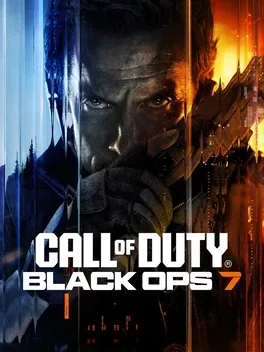
Call of Duty: Black Ops 7 is a first person shooter set in 2035, where the world teeters on collapse after years of brutal conflict and psychological warfare following the events of Black Ops 2 and Black Ops 6. David Mason leads an elite Black Ops unit using advanced technology on a covert operation in the sprawling city of Avalon, uncovering a sophisticated scheme that weaponizes fear and forces the team to confront their own traumatic pasts. Players can tackle an innovative co op campaign solo or with friends, jump into multiplayer featuring 16 distinct 6v6 maps and two large scale 20v20 battlegrounds at launch with a cutting edge Omnimovement system, and descend into Treyarch’s signature round based Zombies mode, battling through the Dark Aether in the largest Zombies map in Black Ops history.
Developed by , · Published by


- Reset your control bindings to the default layout inside Black Ops 7.
- Recreate any custom keybinds afterward, avoiding duplicate or conflicting inputs.
- Open the graphics settings menu inside Black Ops 7.
- Restart the shader installation so the game can rebuild its shader cache.
- Wait for shader optimization to finish fully before joining any match.
- Select Start → Settings → Apps → Installed apps.
- Find Call of Duty.
- Select the More (three dots) icon and select Advanced options.
- Select Terminate.
- Under Reset, select Repair.
Advertisement
Known issues (no solution listed yet)
These are community-reported issues we don’t have a listed fix for yet. If something worked for you, share it.
System requirements
Minimum
- OS: Windows® 10 64 Bit (latest update)
- Processor: AMD Ryzen™ 5 1400 or Intel® Core™ i5-6600
- Memory: 8 GB RAM
- Graphics: AMD Radeon™ RX 470, NVIDIA® GeForce® GTX 970 / 1060 or Intel® Arc™ A580
- DirectX: Version 12
Recommended
- OS: Windows® 11 64 Bit (latest update)
- Processor: AMD Ryzen™ 5 1600X or Intel® Core™ i7-6700K
- Memory: 12 GB RAM
- Graphics: AMD Radeon™ RX 6600XT, NVIDIA® GeForce® RTX 3060 or Intel® Arc™ B580
- DirectX: Version 12