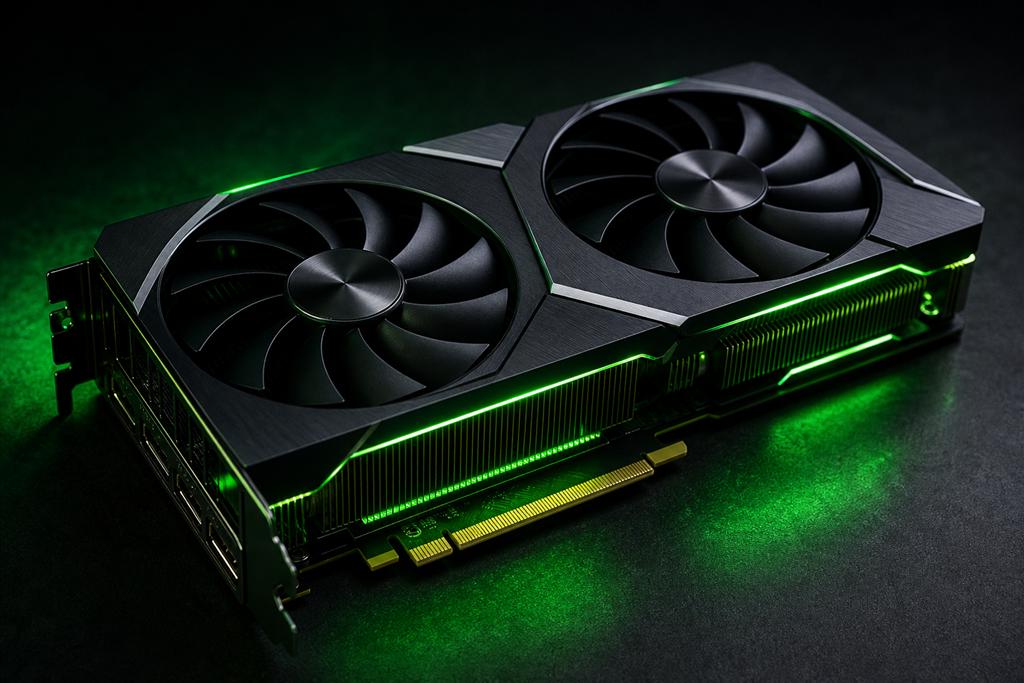
Outdated graphics drivers are behind a large share of game crashes, black screens, and poor performance on Windows. Keeping them current takes less than five minutes and fixes problems that nothing else will.
Why GPU drivers matter
The driver is the software layer between your game and your hardware. When a new game ships, GPU vendors release Day 0 drivers tuned for it. Running months-old drivers means you may be missing critical compatibility patches and performance improvements.
Check your driver version first. Press Win + R, type dxdiag, and look
under the Display tab. Compare your driver version and date against the latest
release on your GPU vendor's website.
NVIDIA GeForce
- 1
Download GeForce Experience from nvidia.com/geforce-experience if you don't have it, or open it if you do.
- 2Go to the Drivers tab. Click Check for updates.
- 3
Choose Express Installation for a one-click upgrade, or Custom Installation if you want to select which components to install (useful to skip GeForce Experience itself).
- 4Restart your PC when prompted.
Prefer a manual install? Download the driver directly from nvidia.com/drivers, choosing your GPU series, OS, and Game Ready Driver (not Studio Driver unless you do creative work).
If you suspect a corrupt driver install, use DDU (Display Driver Uninstaller) in Safe Mode to fully wipe the old driver before installing the new one. This solves edge cases that an in-place update does not.
Advertisement
AMD Radeon
- 1
Open AMD Software: Adrenalin Edition (installed with your driver). Click the Home tab, then Check for Updates.
- 2If an update is available, click Download and then Install.
- 3
Alternatively, download the latest driver from amd.com/support. Select your GPU family and model, then run the installer.
- 4Restart your PC.
Intel Arc / Iris Xe
- 1Open Intel Arc Control or search for it in the Start menu.
- 2Go to System → Driver & Software and click Check for updates.
- 3
Alternatively, use the Intel Driver & Support Assistant which auto-detects your hardware.
After updating
- Launch your game and test whether the issue is resolved.
- If the problem persists, the driver update rules it out. Look at other causes such as CPU/RAM overclocks, corrupted game files, or software conflicts.
Rolling back: If a new driver makes things worse, you can roll back in Device Manager → Display Adapters → right-click your GPU → Properties → Driver → Roll Back Driver.