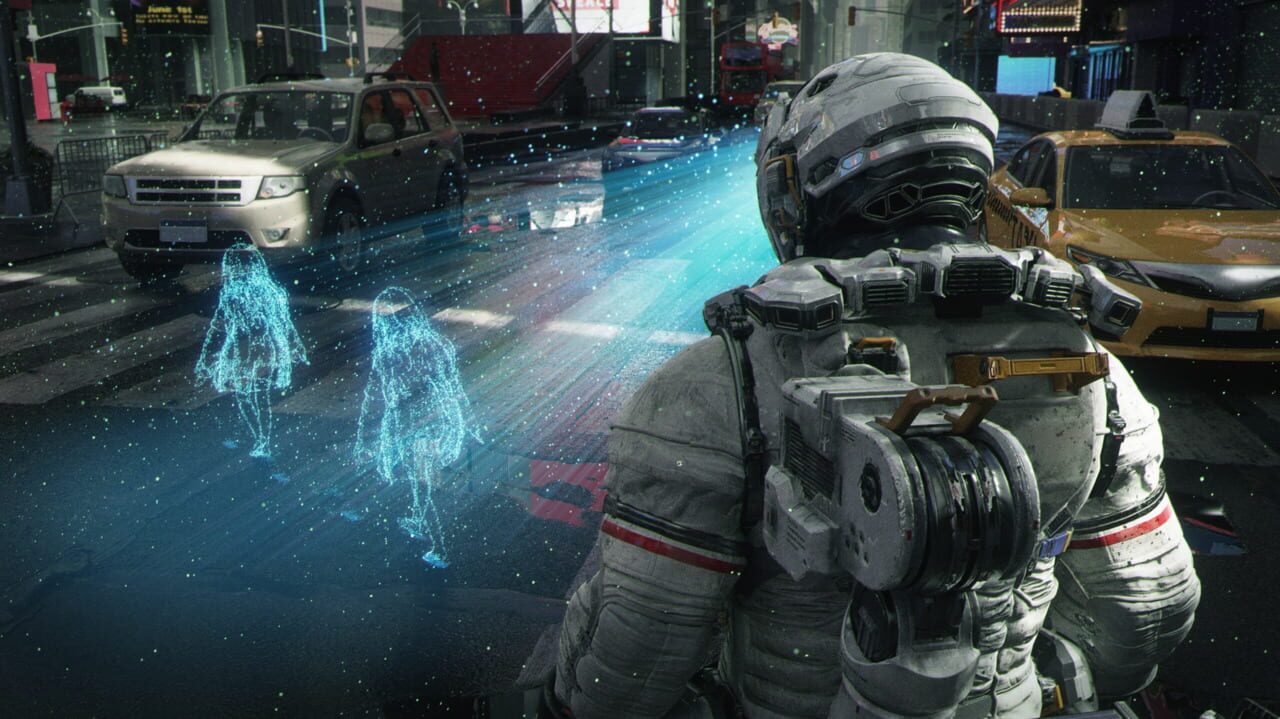
Pragmata is a DirectX 12 title. Its dual-character combat system, drone-filled lunar environments, and dense lighting effects place sustained load on both CPU and GPU simultaneously. That makes it especially sensitive to driver quality, system configuration, and software conflicts. Crashes on launch, mid-session drops to desktop, screen tearing, flickering geometry, and washed-out or missing textures are the most common reports. Each section below targets a specific cause in order of how frequently it fixes the problem.
Update your GPU drivers
Pragmata requires DirectX 12, and DX12 titles expose driver bugs that older API versions masked. An outdated driver can cause the game to crash silently, produce black or corrupted frames, or fail to launch entirely. GPU vendors regularly ship game-ready driver packages; install the latest for your NVIDIA, AMD, or Intel card before anything else.
→ How to update your GPU drivers (NVIDIA, AMD, Intel)
Verify game file integrity
Visual bugs (flickering textures, missing geometry, incorrect lighting) often trace back to corrupted or partially downloaded files rather than a GPU or driver issue. A verification pass replaces only the damaged files without a full reinstall.
→ How to verify game file integrity on Steam, Epic, GOG and Xbox
If you spot visual glitches that started right after a patch, run a file verification first. It takes a few minutes and resolves a large share of post-update issues.
Adjust graphics settings to reduce GPU stress
Pragmata's lunar environments combine volumetric lighting, reflective surfaces, and the visual state of two simultaneously active characters. If your GPU is at or near the minimum spec (GTX 1660 6 GB / RX 5500 XT 8 GB), sustained VRAM pressure causes crashes, stutter, and rendering artifacts.
Open Settings → Graphics and start with these reductions:
- Shadow Quality: drop to Medium
- Ray Tracing: disable as a first test; re-enable once stable
- Texture Quality: lower if you have less than 8 GB VRAM
- Resolution Scale: reduce to 80–90% before touching other settings
Visual artifacts that appear only in specific areas of the facility, rather than everywhere, usually point to a graphics setting exceeding VRAM capacity rather than a bug in the game itself.
Ensure Windows 11 and DirectX 12 are fully up to date
Pragmata requires Windows 11 (64-bit) and DirectX 12. Running the game on Windows 10 or a stale Windows 11 installation without the latest cumulative updates can produce DX12 runtime errors, black screens, or immediate crashes at the title screen. Open Settings → Windows Update and install all pending updates, then restart before launching.
Add the game to antivirus exclusions
Real-time antivirus scanning intercepts file reads as Pragmata streams assets, causing hitches, stutter, and mid-session crashes. Some suites quarantine Capcom's anti-tamper components after a patch, which prevents the game from starting at all. Add the install folder to your antivirus exclusion list, then verify game files to restore anything removed.
→ How to add a game to antivirus exclusions (Windows Defender, Malwarebytes, Avast, Bitdefender)
Disable overlays and background apps
Multiple overlays injecting into the same DirectX 12 process frequently conflict and cause crashes, frame drops, or hangs at loading screens. Disable the Steam overlay, Discord overlay, GPU vendor in-game overlay, and Xbox Game Bar for testing. Close heavy background apps (browsers, cloud sync, capture software) to free RAM and CPU headroom before launching.
Reinstall Visual C++ Redistributables and DirectX runtimes
Missing or damaged runtime libraries produce launch failures and missing .dll errors. Download the latest Visual C++ Redistributable (x64) from Microsoft's official page, install it, then restart. Run Windows Update to ensure all DirectX 12 components are current.
Still crashing or seeing visual bugs?
If the steps above haven't resolved the issue, the problem may be specific to your hardware or a bug in the current game version. Check the official Pragmata website and its community discussion channels for patch notes, workarounds, and reports matching your exact error.
You can also visit the Pragmata page on BugFreeGG for community-submitted fixes or to report what worked for you.