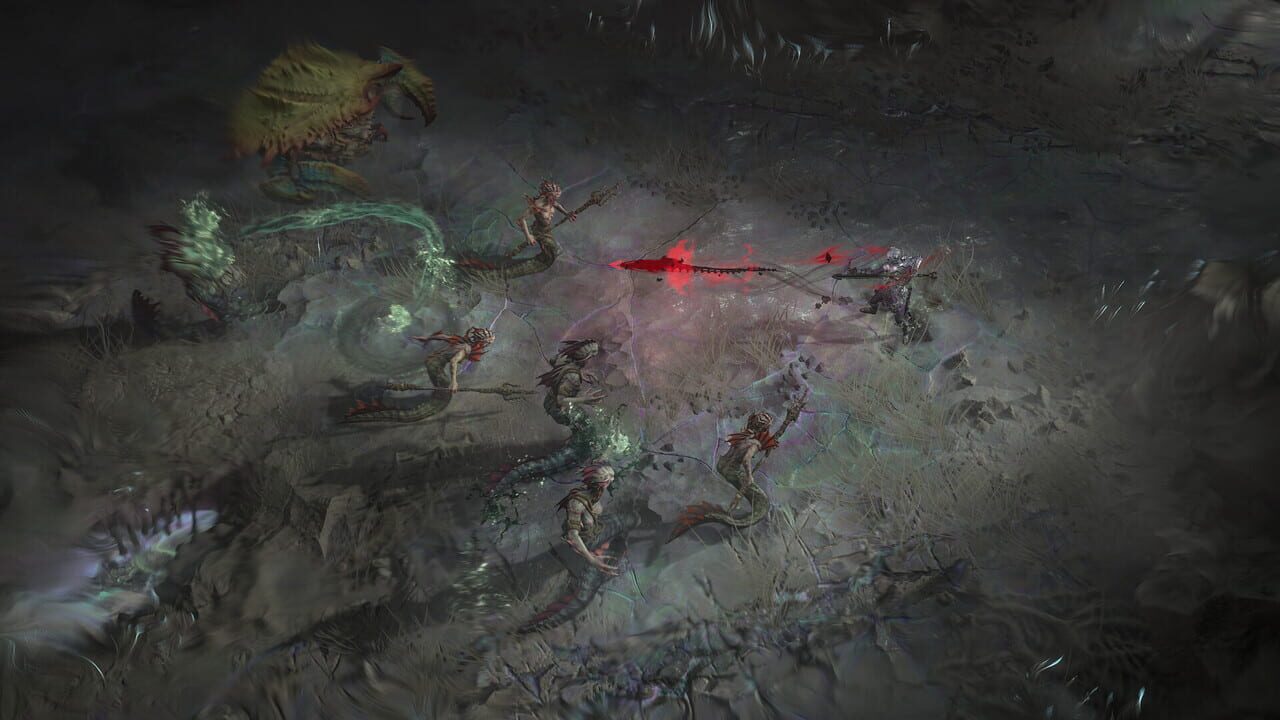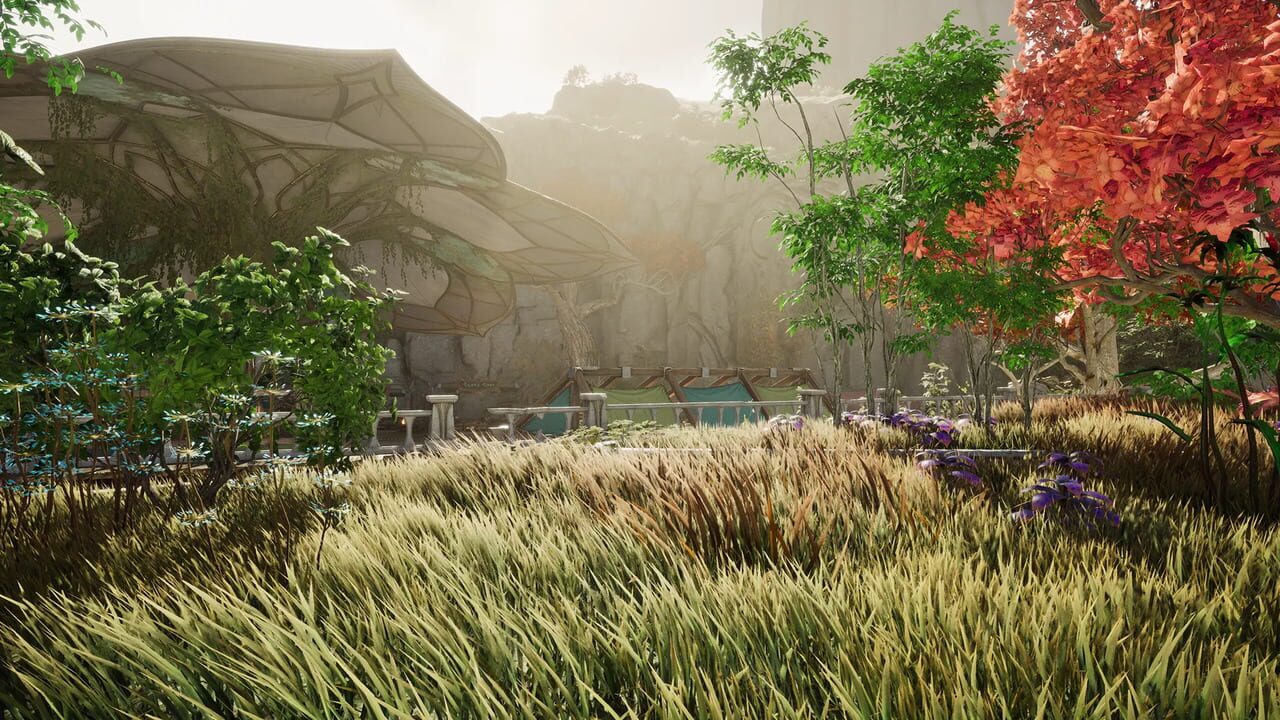
AION 2 is an Unreal Engine 5 MMORPG. Cities, flight across a large world, and faction fights in the Abyss stream characters, spell effects, and terrain at the same time. That shows up as stutter: a short freeze when you enter a zone, a hitch when a group starts casting, or a counter that looks fine while the picture still jumps. These steps target a frame time you can hold in those scenes.
Update your GPU driver
AION 2 uses DirectX 12. A driver from before the game's Game Ready support often shows up as hitching, shader glitches, or upscaler options that never appear in the Graphics tab.
On NVIDIA, the package to look for is GeForce Game Ready Driver 617.14, released 22 September 2026. Open the NVIDIA app → Drivers tab and check the version at the top of the page. If it reads 617.14 or higher, click Download, then install.
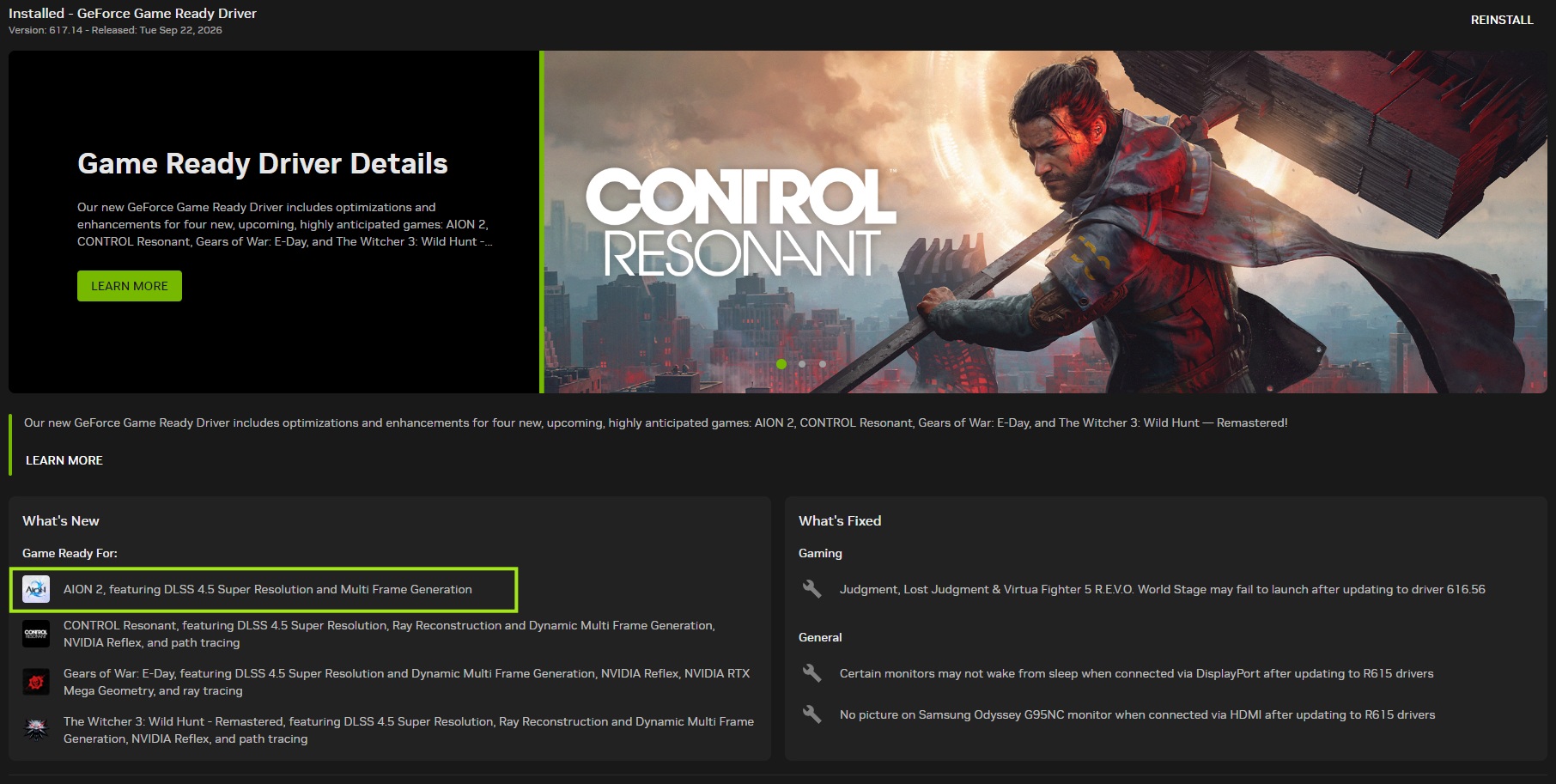
Under What's New, that driver lists AION 2 first under Game Ready For, with DLSS 4.5 Super Resolution and Multi Frame Generation. Those are the two features the Graphics tab needs before Upscaler → DLSS and Frame Generator behave as described below.
AMD and Intel cards need the current driver from their own app. The install steps for NVIDIA, AMD, and Intel are here:
→ How to Update Your GPU Drivers for Gaming
After the driver install, clear the shader cache and let AION 2 rebuild shaders in a quiet zone before you judge performance. Shaders left over from the previous driver are a frequent hitch on the first visits after an update.
Lock a frame rate you can hold
AION 2 has no separate FPS limit. Screen Refresh Rate is the cap. An uncapped rate spikes in a quiet field and collapses when other players appear, and that swing is the stutter.
- 1
Open the main menu, click the Settings gear, and go to the Graphics tab. The display options are under Optimize.
- 2
Leave Vertical Sync On. It ships on. Set it to Off and Screen Refresh Rate locks, so you can no longer change the cap.
- 3
Set Screen Refresh Rate to a rate that stays flat in a city and in a group fight. Start at 60 if the game is already hitching.
- 4
Set Display Mode to Full-Screen Mode for the test. AION 2 starts in Borderless Window Mode.
If Screen Refresh Rate only lists 60, set the monitor to its native rate under Windows Settings → System → Display → Advanced display, relaunch, then pick the in-game rate again while Vertical Sync is still On. Use the highest rate that stayed flat in the city test.
Leave Frame Generator off until the hitch is gone
The Game Ready driver above is what adds Multi Frame Generation. In the Graphics tab that option is Frame Generator, and it sits under Graphics Quality – Advanced. It inserts extra frames and lifts the counter. Combat and movement still run at the real rate, so a crowd hitch remains a hitch, and input latency goes up.
If the GPU is saturated when the hitch happens, give it headroom with the upscaler instead. Under Graphics Quality – Advanced, switch Upscaler from TSR to DLSS on a supported GeForce RTX card. If the list shows FSR, use that on a Radeon card, and fall back to TAA when neither applies.
→ DLSS, FSR, and XeSS Explained: Which Upscaling Should You Use?
Turn NVIDIA Reflex on when it appears in the menu. On a supported GeForce card it lowers latency and belongs with a real frame cap. Boost suits long sessions. On a Radeon card, Radeon Anti-Lag is the equivalent.
Advertisement
Ease the settings that spike in a crowd
Every quality option in the Graphics tab runs on the same scale: Very Low, Low, Normal, High, Very High. Lower these first. They are the usual source of city and combat stutter:
- Effect Quality: Very Low. A burst of spell particles is a common mid-fight hitch, and the higher settings add fog and material particles that hide what is happening
- Player Particle Effect Display: set the range to Self or Party instead of everyone around you. This is the single biggest cut in a group fight
- Shadow Quality: Very Low or Low. Many character shadows add CPU work when a crowd is on screen
- Shading Quality: Very Low. It only affects torches and local light sources, so outdoor scenes barely change
- Power Lighting Quality: Low, not Very Low. The lowest step washes colour out
- View Distance Quality and Model Quality: Normal, then Very Low if the hitch only appears around other players. Neither one changes the picture much
- Vegetation: Very Low outdoors. Grass and tree detail is one of the clearest differences between steps
- Reflection Quality: Very Low removes reflections entirely, which is the cheap option near water
- Screen Post-Processing Quality: Very Low. This is also where motion blur and bloom live, since AION 2 has no separate toggle for either
- Cloud Quality: Normal. Very High adds a scattering pass you do not need in a fight
- Ambient Occlusion: NCAO rather than GTAO. It weights nearby shadows and costs less
Keep Texture Quality where it is unless you see pop-in or a hitch each time you move into new ground. That pattern is VRAM pressure. On a 4 GB card, start textures at Low. On 8 GB, High is fine while memory use stays level.
If the Graphics tab includes Same Appearance for Other Players, turn it on for the Abyss. It replaces non-party characters with standardised models instead of loading every armour set. Large-Scale Battle Quality controls how many characters draw at once, so keep it at Normal rather than the floor, or commanders and objectives stop rendering at distance.
Change one option, then repeat the same route: a quiet spot, a city, then a fight. The quiet spot only shows that the PC has headroom.
Shader stutter in a new zone
The first minutes in a region can hitch while Unreal compiles shaders. That pass should settle and stay settled. If the same hitch returns after a driver install or a game patch, clear the cache, reboot, and spend a few minutes in a quiet zone before you join a fight.
→ How to Clear or Disable the NVIDIA Shader Cache
Hitches while moving or flying
AION 2 streams terrain, characters, and gear as you travel. A hard drive turns that stream into pauses. Install the game on an SSD.
Real-time antivirus scans those same files and can hitch on every new asset. Exclude the install folder, then verify files so anything quarantined is restored.
→ How to add a game to antivirus exclusions (Windows Defender, Malwarebytes, Avast, Bitdefender)
→ How to verify game file integrity on Steam, Epic, GOG and Xbox
A laptop running AION 2 on the integrated GPU stutters under a load the dedicated card can hold, including in empty areas. Force the dedicated GPU when the hitch is everywhere.
→ How to Force a Game to Use Your Dedicated GPU on Windows
Overlays and background apps
Steam, Discord, NVIDIA, AMD, and Xbox Game Bar overlays hook the same process as the game and add frame spikes. Disable them for the test. Before a crowded activity, open Task Manager (Ctrl + Shift + Esc) and close browsers, cloud sync, and capture software.
→ How to Disable Overlays That Cause Crashes (Steam, Discord, NVIDIA, AMD, Xbox Game Bar)
→ How to Enable Game Mode in Windows 11 and 10 (And Is It Worth It?)
Use the in-game menu. Downloaded Engine.ini files target another PC's GPU, VRAM, and
patch, and a later update can make stutter worse. You can reset the Graphics tab.
Match the fix to the hitch
Watch Task Manager's Performance tab in the scene that stutters.
- The GPU is pinned in every area: lower shadows, lighting, reflections, and the upscaler preset
- The CPU is pinned only in cities and fights: lower Effect Quality, View Distance Quality, Model Quality, and Large-Scale Battle Quality
- Memory is full: close background apps, then lower textures
- The hitch only happens when you enter a zone, or after a driver update: clear the shader cache
- The hitch only happens while flying or running onto new ground: move the game to an SSD, exclude it from antivirus, and ease texture streaming
If that scene is still unstable, check the official AION 2 website and its community forums for a patch note that matches your client. Menu names differ between regions, so follow the label your Graphics tab actually shows.
You can also visit the AION 2 page on BugFreeGG for fixes other players have posted, or add what worked on your PC.